Disaster Recovery & Trash Bin
Struktural provides built-in safeguards to prevent catastrophic configuration loss. These mechanisms protect against both the accidental deletion of an entire tenant application and the corruption of a tenant's internal configuration (Schemas, UI Layouts, and Scripts).
1. Tenant Soft Deletion (The Trash Bin)
When a Super Administrator issues a DELETE /api/platform/apps/{appId} command to remove a tenant application, the platform executes a defensive teardown sequence rather than immediately destroying the file system.
The Deletion Sequence
- Memory Unloading: The engine unloads the tenant's
AssemblyLoadContext(ALC) from the Kestrel server and clears all in-memory caches, dropping active database connections. - Storage Protection Check: The engine evaluates the
StrukturalEngine:DeleteStorageOnAppDeletionconfiguration flag (default isfalse). If false, the physical files residing in AWS S3 or Azure Blob Storage are explicitly preserved. - Schema Teardown: If
StrukturalEngine:EnableAutoMigrationis true, the engine executes aDROP SCHEMA CASCADEcommand against the SQL database. (Note: Production environments should set this to false to require manual DBA intervention for data deletion). - Move to Trash: Instead of calling
Directory.Delete(), the physical folder located atApps/{appId}is atomically moved toApps/.trash/{appId}_{Guid}.
Restoring a Deleted Tenant
Because the files are safely parked in the .trash directory, the application can be fully restored.
UI Approach:
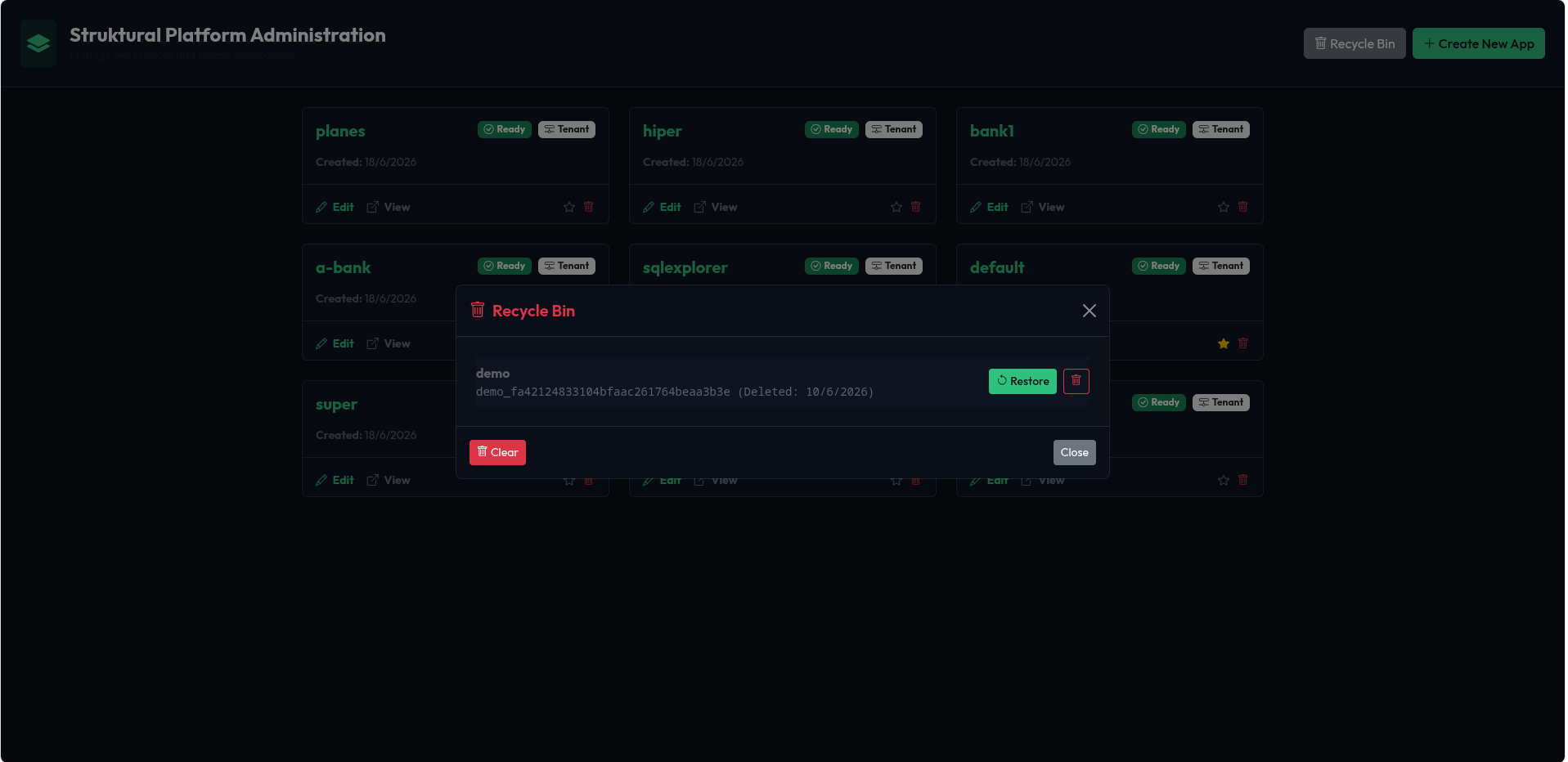
- Navigate to the global Platform Administration dashboard (
/admin/apps). - Click the Recycle Bin button in the top right.
- A modal will display all soft-deleted applications. Click Restore next to the desired tenant.
API Approach:
Call POST /api/platform/apps/trash/{folderName}/restore.
The engine will move the folder back to the root, dynamically re-compile the C# scripts, and hot-reload the tenant.
2. Configuration Backups (Time Travel)
While the Trash Bin protects the entire tenant, Configuration Backups protect the internal metadata (Entities, Views, and Scripts) from accidental corruption by developers or the AI Architect.
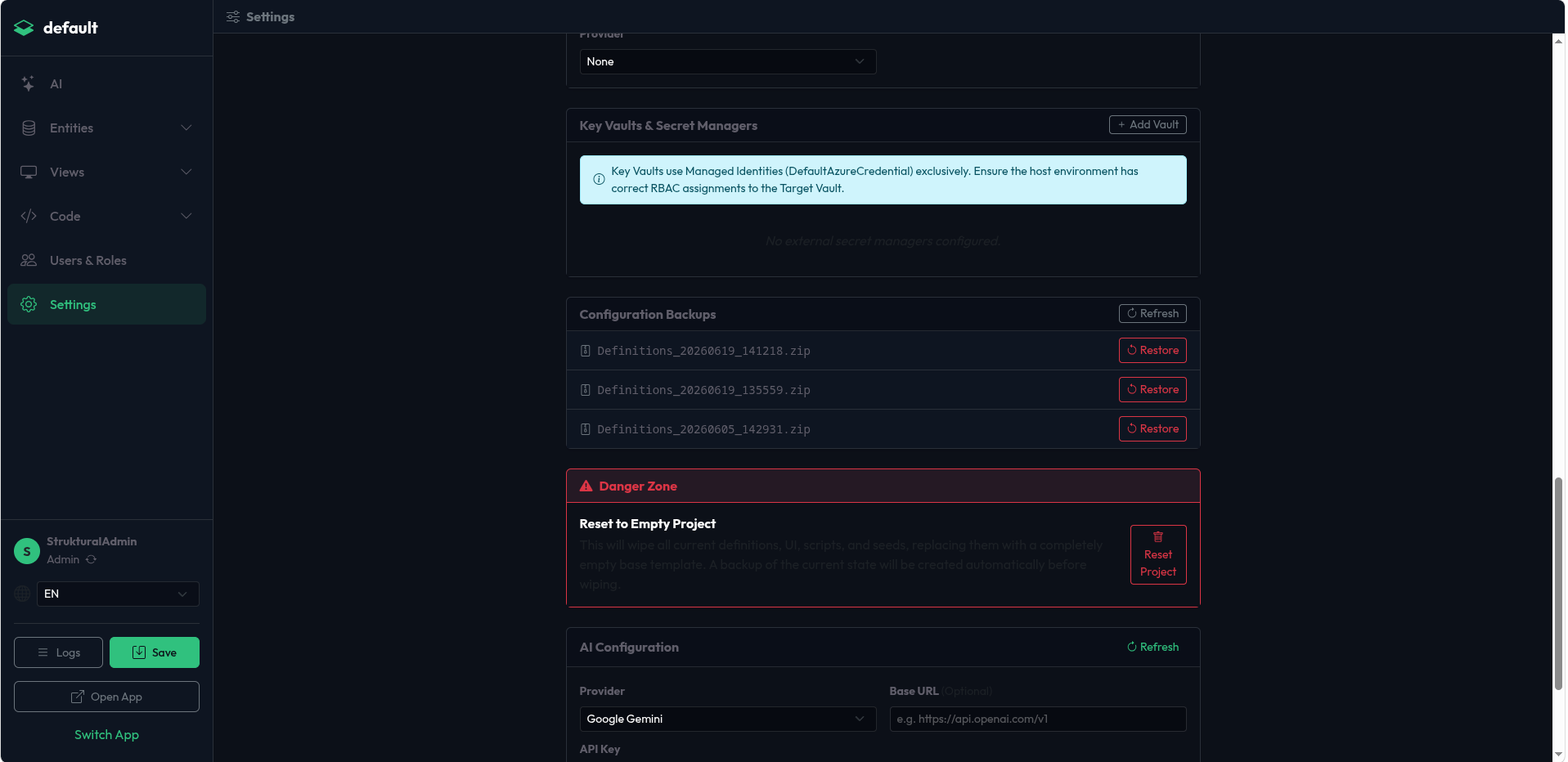
Whenever a highly destructive action is triggered in the Studio (such as resetting the project to a blank template), the engine automatically captures a snapshot of the current state.
Storage Location
Backups are standard ZIP archives containing the entire Definitions folder. They are safely stored outside the tenant's active workspace to prevent recursive backing up:
Apps/.backups/{appId}/Definitions_{timestamp}.zip
Atomic Restoration Process
Restoring a backup (POST /api/admin/apps/{appId}/backups/restore/{id}) is a high-risk operation, as a server crash during file extraction could leave the tenant's JSON schemas in a corrupted, half-extracted state.
To guarantee Zero Downtime and absolute consistency, the BackupService utilizes an Atomic Swap mechanism:
- Extraction: The ZIP file is extracted into a temporary directory (
Definitions_temp_uuid). - Swap: The current active
Definitionsfolder is rapidly renamed toDefinitions_old_uuid. - Activation: The temporary folder is renamed to
Definitions. - Cleanup & Reload: The
_oldfolder is deleted via a background thread, and the Roslyn compiler is triggered to hot-reload the newly restored state.
Restoring via UI:
- Navigate to the Settings module in the Studio.
- Scroll to the Configuration Backups card.
- Click the Refresh icon to fetch the latest ZIP files, then click Restore on the target snapshot.
Alternatively, if you wish to wipe the tenant completely clean, scroll down to the Danger Zone and click Reset Project. This takes a final safety backup and overwrites the tenant with a blank framework template.