Secrets Management
Struktural enforces a strict "No Hardcoded Secrets" policy for production environments. Connection strings, API keys, and SMTP passwords should be resolved dynamically at runtime using secure Vaults.
Supported Secret Managers
The platform supports native integration with:
- Azure Key Vault (
Provider: "Azure") - AWS Secrets Manager (
Provider: "AWS") - Local (AES-256 encrypted strings in the JSON file using the server's
StrukturalSecurity:MasterEncryptionKey).
Vault Authentication (Managed Identities)
To connect to Azure Key Vault or AWS Secrets Manager, Struktural relies exclusively on the ambient environment identity (e.g., DefaultAzureCredential). You do not provide Client IDs or Secrets to connect to the Vault itself.
The host environment (Virtual Machine, Azure App Service, or Kubernetes Pod) must have the appropriate RBAC roles (e.g., "Key Vault Secrets User") assigned to its managed identity.
Configuring a Secret Manager
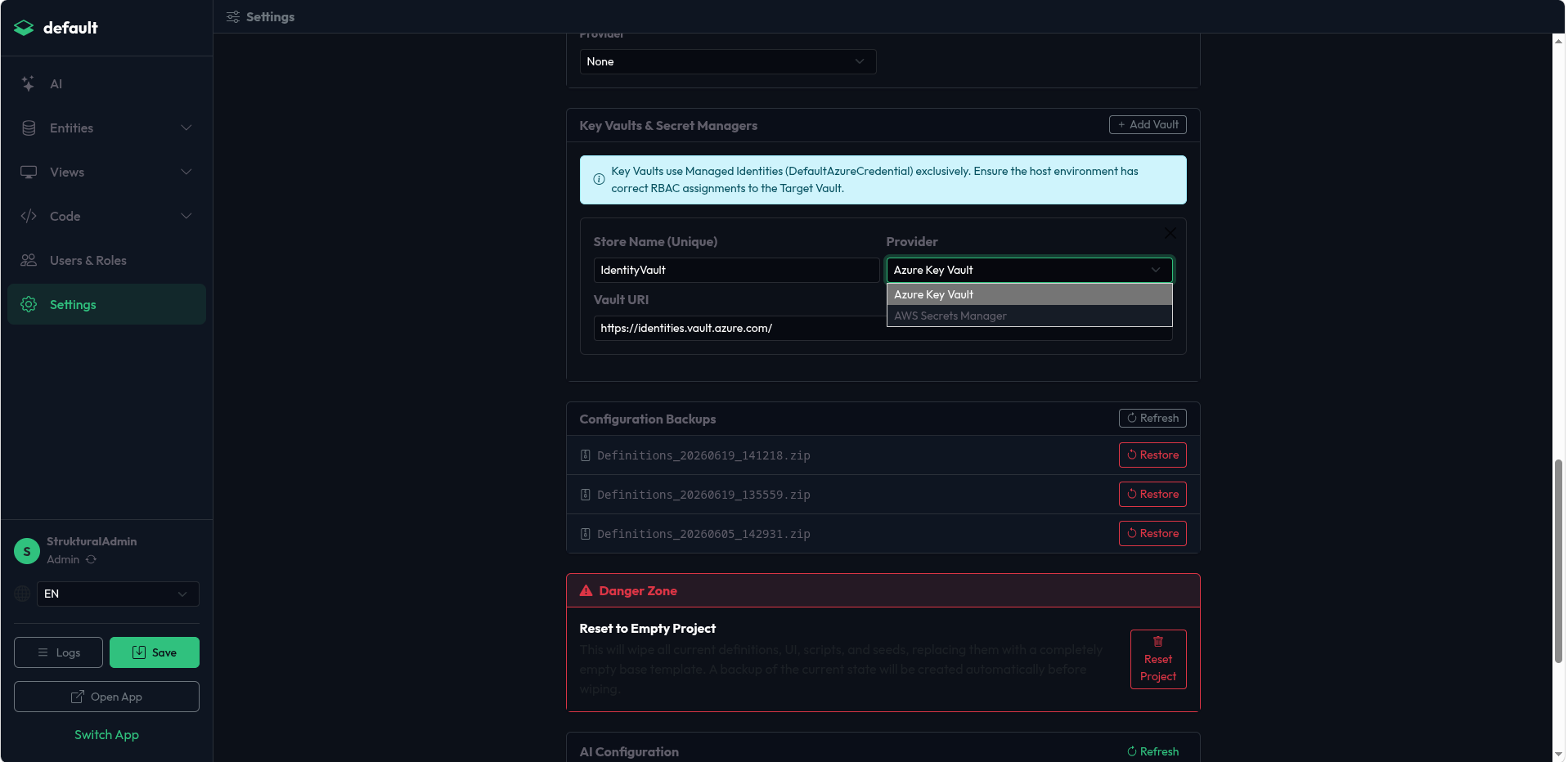
UI Approach:
- Navigate to the Settings module in the Studio.
- Scroll to the Key Vaults & Secret Managers section.
- Click Add Vault, provide a unique name (e.g.,
PrimaryVault), select the provider (Azure/AWS), and enter the target URI or Region.
JSON Approach:
In the tenant's app-config.json, define the vault under SecretManagers:
"SecretManagers": [
  {
    "Name": "PrimaryVault",
    "Provider": "Azure",
    "VaultUri": "https://my-enterprise-kv.vault.azure.net/"
  }
]
Using Secret References
Wherever the schema requires a sensitive value, use a SecretReference object instead of a raw string.
Example: Defining a Database Connection String using a Vault:
"Database": {
  "Provider": "PostgreSQL",
  "ConnectionStringRef": {
    "Store": "PrimaryVault",
    "Key": "Erp-Db-ConnectionString",
    "Value": ""
  },
  "Schema": "public"
}
During the engine boot process, the SchemaSecretResolver will securely fetch the secret named Erp-Db-ConnectionString from PrimaryVault and inject it into the runtime context without ever writing the plain text value back to disk.
UI Approach: Throughout the Settings and APIs modules, any field that accepts a secret will utilize the Secret Selector component.
- Select the Storage Location from the dropdown (either
Localor your configured Vault). - If
Localis selected, enter the plain text value; it will automatically be AES-256 encrypted when you save. - If an external Vault is selected, the component will fetch the available keys directly from the cloud provider, allowing you to select the target secret key from a dropdown.
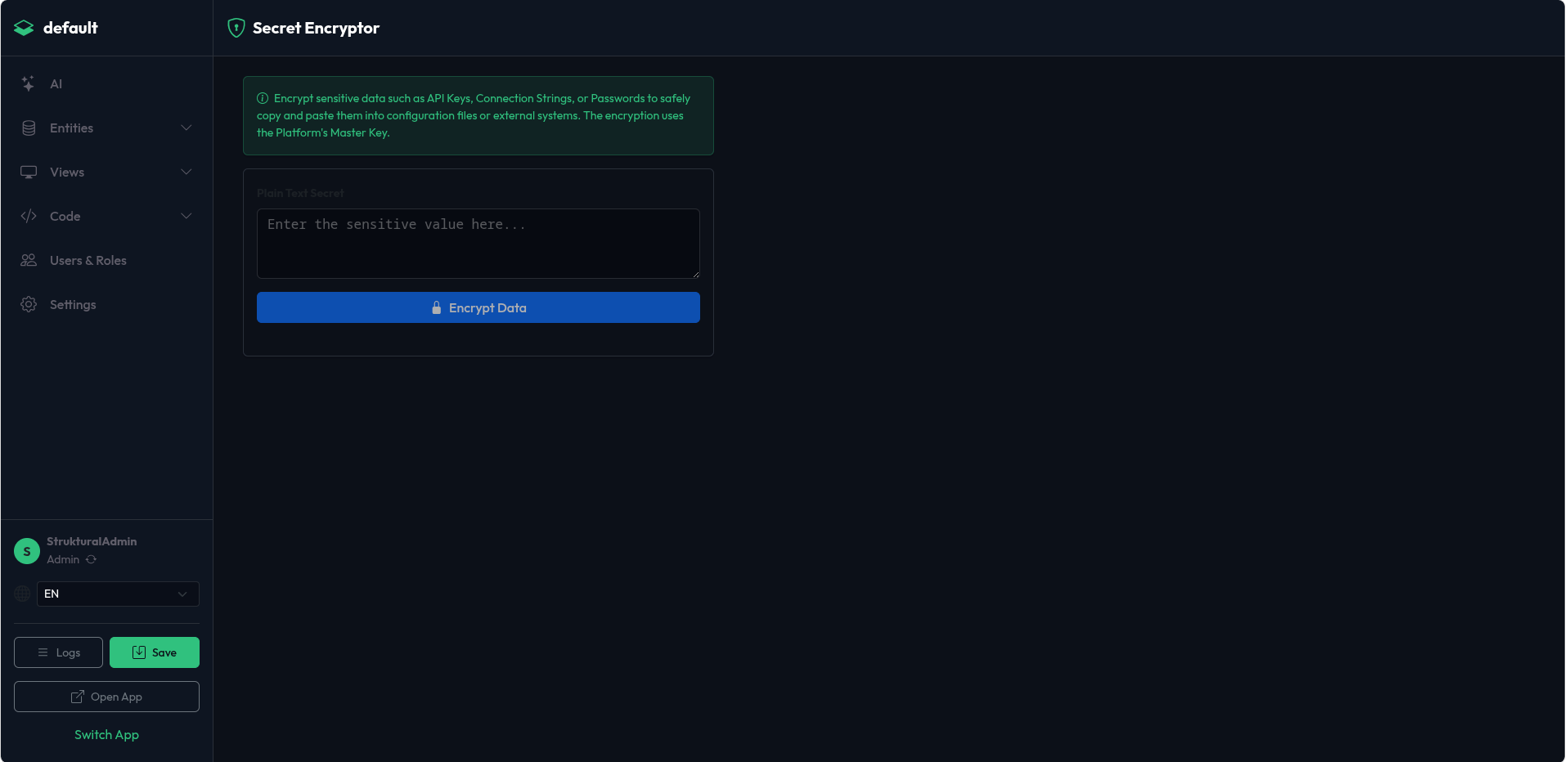
If you only need to encrypt a static string to copy/paste into a custom configuration file, navigate to the Secret Encryptor module in the Studio sidebar, paste your plain text, and click Encrypt Data to generate a secure payload.